
Views: 0 Author: Site Editor Publish Time: 2025-10-20 Origin: Site


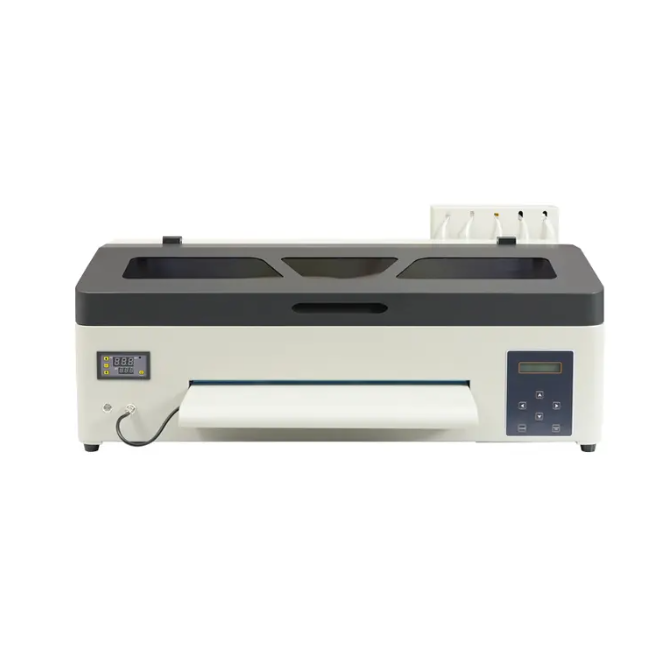
Many people who use DTF Printers have the same problems. You may see ink not sticking well. Sometimes, white ink gets clogged and will not flow. Colors can look wrong or not match. The powder may not stick to the film. The film can get stuck or jammed. Prints can look rough or grainy. Transfers may stick when they should not. The software might not be set up right. Think about if you have had any of these problems. Knowing what is wrong helps you fix it and get better results.
Be careful when you handle film. This helps stop jams, wrinkles, and misalignment. Loading film the right way saves time and materials.
Use good quality inks. Let prints cool all the way before touching them. This stops smudging and gives you cleaner, sharper prints.
Always use the right ICC profile for your printer. This helps you get the correct colors. It also keeps your prints looking the same each time.
Clean your printer often. Take care of the printhead and waste ink. Doing this helps your printer last longer.
Check your curing process to make sure prints are strong. The right heat and time stop peeling and fading.
Handling film the wrong way causes many problems for users of DTF Printers. You may see the film jam, wrinkle, or misalign. These mistakes happen often because the film must move smoothly and stay straight during printing. If you do not load the film correctly, you may waste materials and time. You can avoid these issues by following simple steps and checking your setup before you start.
Film jamming happens when the film gets stuck inside the printer. You may notice the printer stops or makes strange noises. This problem often comes from loading the film incorrectly or using too much tension. You can prevent jams by following these steps:
Adjust the guides on both sides of the printer bed. Loosen the screws to move the guides as needed.
Press the exit button until the film comes out. Check if the film lines up with the guides. If it does not, adjust the guides or remove the film and try again.
Make sure the film matches up with the white tab. The film should not go past the left side of the tab.
Feed the film through the printer using the enter and exit buttons. Watch to see if the film moves freely through the guides.
Tip: Always check the tension knobs on both sides of the film roll. Loosen them so the film does not slip or jam.
Wrinkles in the film can ruin your print. You may see uneven colors or poor transfers. Wrinkling often happens when the film is too tight or too loose. You can fix this by setting the right tension and letting the film unroll smoothly.
Loosen the tension knobs on both sides of the film roll.
Push the film into the printer and let it unroll for three to four seconds on its own.
Perform a base step adjustment to make sure the film sits flat.
Complete a vertical offset adjustment to keep the film straight.
Note: If you see wrinkles, stop the printer and reload the film. Smooth out any folds before you start printing again.
Film misalignment causes prints to look crooked or uneven. You may see images or colors out of place. This problem often comes from poor setup or uneven surfaces. You can solve misalignment by checking several points before you print.
Balance the powder across the width of the film.
Level the oven, bridge, printer, and film roll.
Center the film in the printer between the yellow alignment stickers.
Make sure the film roll lines up with the yellow stickers.
Check the left and right tension adjustments on the film roll.
DTF Printers work best when you handle the film with care. You can avoid jams, wrinkles, and misalignment by following these steps and checking your setup each time. Good film handling helps you get clean, sharp prints and saves you time.
Ink problems often cause frustration for users of DTF Printers. You might see smudges on your prints, clogged printheads, or issues with white ink. These problems can lower print quality and lead to wasted materials. Knowing how to spot and fix these issues helps you get better results and avoid customer complaints.
Ink smudging happens when the ink does not dry properly or pools on the film. You may notice blurry edges or colors that run together. This problem usually comes from using low-quality ink or touching prints before they cool. Sometimes, too much humidity in the room can also cause smudging.
To prevent ink smudging, follow these tips:
Use high-quality inks made for DTF Printers. These inks flow better and have fewer impurities, so you see less pooling and fewer smudges.
Always let your prints cool completely after curing. Touching them too soon can smear the ink.
Store finished prints flat in a dry, dust-free space.
Wear gloves or use clean, dry hands when handling prints.
Clogged printheads are a common problem in DTF Printers. You might see missing lines, faded colors, or uneven prints. Clogs happen when ink dries inside the printhead or when dust builds up in the printer.
You can avoid clogs by following a regular cleaning routine:
Clean the printhead weekly or bi-weekly, especially if you print often.
Use the cleaning solution recommended by your printer’s manufacturer.
Remove dried ink under the printhead with dental tools if needed.
After cleaning, check the printhead alignment and look for leftover debris.
Control dust in your workspace to keep the printer clean.
Schedule regular checks on all printer parts to catch small problems early.
White ink can be tricky to manage in DTF Printers. You may notice blockages or uneven white layers. This happens because white ink contains heavy pigments like titanium dioxide, which settle at the bottom and cause clogs. High humidity or low temperatures can make these problems worse.
To keep white ink flowing smoothly, try these steps:
Make sure white ink circulates even when you are not printing. Some printers have built-in pumps or agitation modules for this.
If your printer does not have a circulation system, use an external setup like a gravity-fed stirring tank or a roller-pump loop.
Keep your print room between 72–79°F (22–26°C) and humidity between 40–50%.
Perform regular maintenance to stop sediment from building up in the ink system.
By following these maintenance routines, you can solve most ink issues in DTF Printers. Good habits help you avoid smudging, clogging, and white ink problems. This means cleaner prints and less downtime for your printer.
Color and image problems can make your prints look unprofessional. You might see colors that do not match your design, blurry images, or even ghosting effects. These issues often come from bad printer profiles or wrong settings. You can fix most of these problems by learning how to set up your printer and artwork the right way.
You may notice that the colors on your print do not match what you see on your screen. This happens when you use the wrong ICC profile or skip printer calibration. The color profile acts like a translator between your digital design and the final print. If you do not use the correct profile, your colors can look very different. Many brands struggle with color accuracy because they do not understand how important these settings are.
Incorrect ICC profiles can cause color mismatches.
Poor calibration changes how colors appear.
Bad settings in your RIP software can make colors look wrong.
Blurry images make your prints look low quality. This usually happens when you use low-resolution artwork or resize images too much. You should always use high-resolution images, at least 300 DPI, for clear and sharp prints. Programs like Adobe Photoshop or CorelDRAW help you create and edit images without losing quality. Vector graphics work best because you can scale them without blurring.
Use 300 DPI for all your artwork.
Keep a high pixel density when resizing images.
Optimize your designs with professional software.
Ghosting means you see a faint copy of your image in the wrong place. This can happen if your printer settings are off or if you use the wrong film type. Sometimes, problems during the powdering or curing process can also cause ghosting. Make sure you store your film and powder in a cool, dry place. Always follow the right timing and temperature during curing.
Check your printer ink settings for accuracy.
Control the temperature and humidity in your print room.
Store film and powder properly to keep them in good condition.
When you set up your DTF Printers with the right profiles and use high-quality images, you get better results. Good habits help you avoid color and image problems, so your prints always look their best.
Incorrect powder application can ruin your DTF transfer. If you do not apply the powder evenly, the print may not stick well or could look rough. You might also see cracking or fading after a few washes if the curing process is not done right. If it’s uneven, the print might not stick well or could look pretty rough, so it’s really important to get a good handle on how the powder is being applied. Another thing to keep an eye on is the curing process. If that’s done inconsistently, you could end up with issues like cracking or print washing out after a few washes.
Uneven powder coverage leads to poor transfers. Some areas may not bond to the fabric, while others look thick or gritty. You can fix this by using a steady, gentle motion when spreading the powder. Try rocking the film back and forth to coat the design. Make sure you cover every part of the print, but do not pile on too much.
Best practices for even powder application:
Even coverage is a must. Too much powder cakes up and ruins the texture. Too little fails to bond the print.
Shake it right. Use a gentle rocking motion to spread the powder evenly.
Invest in an automated shaker if you plan to print many transfers. This tool helps you get consistent results.
Too much powder leaves a sticky or rough residue on your finished product. This can make the print feel heavy or look messy. Always shake off extra powder before curing. You want a thin, even layer that covers only the printed area.
Uneven powder coverage: Improve your application technique with a more consistent motion.
Excessive powder application: Reduce the amount you use each time.
Powder not melting properly: Check your curing temperature with a thermometer.
Poor adhesion means the print peels off or washes away after a few uses. This often happens when you use too little powder or do not cure the film correctly. You can avoid this by following the right steps for powder application and curing.
Mistake | Description | How to Avoid It |
|---|---|---|
Poor Adhesive Powder Application | Incorrect application of adhesive powder can lead to uneven transfers, patches of missing design, or a sticky residue left on the fabric after the print. Too much powder can cause a buildup, while too little can lead to poor adhesion. | Apply a thin, even layer of adhesive powder to the printed design. After applying the powder, gently shake off any excess. Make sure the film is cured properly before transferring it to the fabric, as improper curing can also affect the powder's adhesion properties. |
You get the best results from DTF Printers when you use the right amount of powder and cure it at the correct temperature. Always check your process and adjust as needed for smooth, strong transfers.
Curing is a key step in DTF printing. You need the right temperature and time to make your prints last. If you get this wrong, your transfers may peel after washing or lose their color. Many users see problems like incomplete curing, peeling, or faded prints. These issues often come from not heating the film enough or using the wrong settings.
Inconsistent curing happens when you do not heat the film evenly or for the right amount of time. If you cure at a low temperature or stop too soon, the ink does not stick well to the fabric. This makes your prints less durable and easy to wash off. You may also see colors that look dull or faded. Proper curing is essential for producing wash-resistant prints. If you do not cure long enough or use enough heat, the ink will not bond well. This reduces the strength and washability of your transfers.
To get consistent curing, follow these steps:
Heat the film in a curing oven or use a heat press.
Make sure the heat melts the adhesive powder so it bonds with the ink.
Watch the temperature and timing closely. Do not guess.
Prepare each film the same way before pressing to keep your results uniform.
Overheating can damage your prints. If you use too much heat or cure for too long, the ink may crack or the colors may change. You might also see the film warp or stick to the press. Always check your heat press or oven with a thermometer. Set the temperature and timer to match your printer’s instructions.
Common curing problems include:
Peeling after washing
Incomplete curing
Issues with temperature and pressure during the curing process
Achieving the right balance of temperature, pressure, and timing keeps your prints bright and strong. When you use DTF Printers, always follow the recommended settings for the best results.
Software and settings mistakes can cause big problems when you use DTF Printers. If you set up your software the wrong way, you might see colors that look strange, lines that do not match, or prints that do not come out right. Many users make these mistakes because they skip steps or use the wrong settings for their printer and ink.
Bad color profiles can make your prints look faded or show the wrong colors. You might notice that the colors on your shirt do not match what you see on your computer screen. This happens when you use the wrong ICC profile or skip color management in your RIP software. To fix these problems, you should:
Download and install the correct ICC profile for your printer, ink, and film.
Use RIP software that supports color correction and profiling.
Start your designs at 300 DPI to keep colors sharp and true.
Sometimes, your printer will not talk to your computer. You may see error messages or the printer may not show up in your software. These connection issues can stop your work and waste your time. Common causes include loose cables, outdated drivers, or wrong port settings.
Here is a table of frequent software setup mistakes and how to avoid them:
Mistake | Description | How to Avoid It |
|---|---|---|
RIP Software Misconfiguration | Wrong settings can cause color problems, banding, and poor ink laydown. | Use the right RIP software, apply correct color profiles, check resolution, and update regularly. |
When you set up your software and profiles the right way, you get better prints and fewer problems. Good habits help you avoid mistakes and keep your DTF Printers running smoothly.
Regular maintenance keeps your printer running smoothly and helps you avoid many common problems. When you take care of your machine, you get better prints, save money, and reduce downtime. You also make your printer last longer. Here is a table that shows why regular maintenance matters:
Benefit | Explanation |
|---|---|
Consistent Print Quality | Prevents clogged print heads and keeps colors sharp. |
Extended Printer Lifespan | Cleaning and replacing parts stops wear and tear. |
Reduced Downtime | Scheduled care means fewer surprise breakdowns. |
Cost Savings | Preventative care costs less than big repairs. |
Optimized Ink Usage | A clean printer uses ink more efficiently. |
Color Consistency | Good upkeep keeps colors accurate. |
Improved Reliability | Regular checks make your printer more dependable. |
You need to clean the printhead often to keep your prints looking good. If you skip this step, you may see clogs or streaks. Follow these steps for the best results:
Turn off your printer before you start.
Prepare the cleaning solution as the instructions say.
Use a syringe or cleaning cartridge to put the solution on the printhead nozzles.
Let the solution soak for the right amount of time.
Turn on the printer and run a cleaning cycle.
Clean the printhead daily if you use your printer a lot. Use special cleaning liquids to keep the nozzles clear and the ink flowing.
Waste ink can build up fast. If you do not manage it, you risk overflow and damage to your printer. Here are some steps you should follow:
Maintenance Step | Description |
|---|---|
Check waste ink levels | Use the control panel to watch for overflow. |
Empty and clean the waste tank | Clean it often to stop blockages and damage. |
Replace waste ink pads | Change them regularly to prevent spills. |
You should follow a schedule to keep your printer in top shape. Here are some tasks and how often you should do them:
Daily: Clean the printhead and run a cleaning cycle.
Weekly: Flush the white ink system and check tubing connections.
Monthly: Replace mesh filters and clean the waste ink tank.
As Needed: Use a moisturizer device during long breaks and refill ink before it gets too low.
Keeping a routine helps you avoid big problems and keeps your DTF Printers working well.
You can keep your DTF Printers working well if you fix problems fast. Acting quickly helps you stop bad prints and saves money. You will not need to redo prints or deal with upset customers.
Good TPU powders help your prints look clear.
Fixing problems right away keeps them from getting worse.
Taking care of your printer before problems start makes it work better.
Maintenance Task | Benefit |
|---|---|
Cleaning printheads often | Stops clogs and keeps prints looking good |
Controlling humidity | Less downtime and better printer performance |
Using the right supplies | Makes prints the same and lowers repair cost |
Controlling temperature | Helps your printer work its best |
Pay attention and use these ideas to get great prints every time.
Check your ink levels first. Make sure you use the correct ICC profile. Clean the printhead. Use high-quality film and powder. Always cure your prints at the right temperature.
You should clean your printer daily if you print often. For light use, clean it at least once a week. Regular cleaning keeps your prints sharp and prevents clogs.
White ink contains heavy pigments. These settle quickly and cause clogs. Shake your ink bottles before use. Use a printer with a white ink circulation system. Clean the white ink lines often.
Store film and powder in a cool, dry place. Keep them away from sunlight and moisture. Use sealed containers for powder. Lay film flat to prevent curling.
No, you must use ink made for DTF printers. Other inks can cause clogs or poor print quality. Always check your printer’s manual for recommended ink brands.


